banner

Work online and earn real money

Wednesday, 22 June 2016

[Latest] How to Reset a Locked iPod Without iTunes - Simple Tricks

Different models of iPod like iPod Shuffle, iPod Touch and Nano have their own unique methods of resetting them.

Its a bad thing to loose access to your audio on the iPod by having problems on using it, The common issue like buttons not to respond and other bugs can be fixed with and without connecting to iTunes. But here we are going to see the simplest tricky ways to reset and restore any iPod without using iTunes.

What happens after you reset your iPod?

Once you reset your device, you will be able to have access to it again. Nearly all of your content will remain but settings will be restored to the default configuration. So, you will have to personalize and set them back to your preferred configuration.

How To Reset An iPod Shuffle

You wanna reset your iPod Shuffle without iTunes?well,That's great!. There is no any complicated step to hire an expert for this. You can be the expert of your own Shuffle iPod on the matter of fixing resetting issues. Below are the simple steps to guide you on doing this!
how-to-reset-ipod-shuffle-without-itunes

First step:

Slide the switch to "Off"

Second Step:

Wait for five seconds from the time you completed the first step.

Third Step:

Move the switch until the green stripe appears.

If you get any complications on the method above, then this one below will be the best for you! Here we go..

Step 1:

Your iPod Shuffle must be turned off and it should not be connected to the computer.

Step 2:

Just wait for at least 10 seconds.

Step 3:

Move your iPod shuffle to the play in shuffle position or order
.

Step 4:

Turn on your iPod.

You can now start start using it, and that is how to reset your iPod Shuffle.

How to Reset iPod Nano

If your iPod shuffle don't respond when you press the buttons, You can reset it by following these simple steps below. Here you'll need no use of iTunes.
reset-ipod-nano

Step 1

Connect your iPod Nano to a power source 

Step 2

Press the Sleep/Wake button and the Volume Down buttons simultaneously. ( you may repeat this procedure for number of times until you do it right)

Step 3

Hold the buttons for about seven seconds.

You can do the process for several times until the iPod resets.

How To Reset An iPod Touch

The easiest solution to restart your iPad touch is by trying nor to use iTunes. Lets see this first one now,
When your iPod is on, hold the sleep button on top of your device until the red Power Off Slider appears and slide it off, the screen will  turn black. After that, hold hold the wake/sleep button for few seconds until the black iPod's screen turns On.  
reset-ipod-touch-with-no-itunes
It sometimes occurs that one solution fails to work depending on the models of iPod Touch. But here, we are not running out of tricks and alternative solutions to fix the problems. Below is another troubleshooting method for resetting your iPod. 

Restore Your iPod Touch 

I know you have already heard about this method of restoring your device right? well, do you know how do this? If yes, then you are luck and never mind if you don't know. You are in the right place where you will get all the information you needed about restoring and resetting any iPod model, and you gonna do it right like a pro.

Now, Hold the Sleep/wake + Home button simultaneously some seconds(at least 10 secs). Do it until the your iPod touch shuts off. The device will start to restart and release the two buttons just after you see the Apple Logo appearing. 
This is how restore an iPod Touch.

Final Tricky Tips:

If you have an Older iPod which uses  touch wheels, scroll wheels, or dock connector, You have to go through the following set of procedures to accomplish your issue

Step 1:

Slide the "Hold" switch on and off. 

Step 2:

Hold the Menu buttons and "Play/Pause" together for about  seven seconds. That's how to reset the old generation models of iPod without iTunes. Try again if the iPod doesn't reset on the above last two steps.
Read more

Saturday, 14 May 2016

How To Set Up Apple TV Multiple Accounts For Home Sharing

How to Set Up Separate Accounts on Your Apple TV
image-result-for-setup-multiple-account-apple-tv-home-sharing
The use of multiple account is one of the best feature of the Apple TV. This makes family sharing to be easy. It gives freedom with your apps and account as whole. 

Setting up multiple account helps  kids and their parent to access their accounts without interfering each other for sharing their home TV. The freedom of ask to buy is just as in iPhone and iPad

The latest fourth-generation Apple TV has been trending on the web since it was released. With this popular gadget at your home, the coincidence of being using the television by two people normally happens.In order to have enough tricks for your apple device, i'm going to show you how to add multiple iTunes accounts so as to help the person who want's to separately access the television through his/her own unique Apple ID's at your home.

Apple TV's accounts allows a single TV to be used by multiple users. This is one of the best thing from the latest Apple TV.It allows you to add multiple Apple ID. So, when someone wants to access the media, he/she just switch the account and enjoy the show. Let's stop wasting time and go direct to the point.

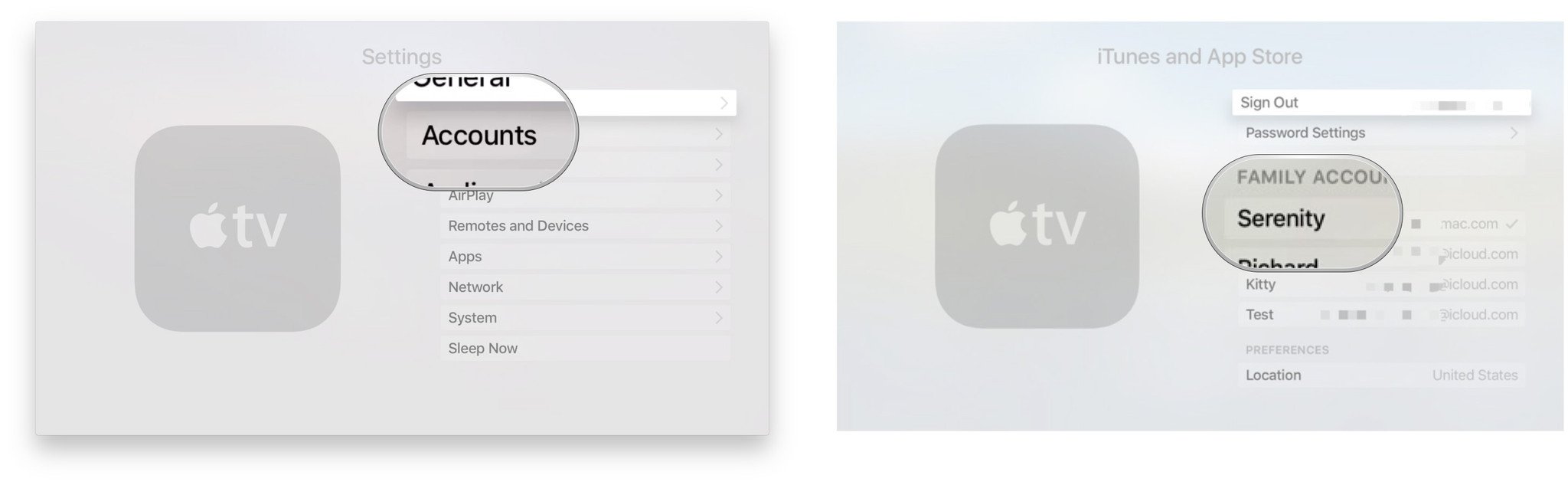
How to add(set up) multiple accounts on the Apple TV

In order to add the second account, you must log in first with the first existing account by using the Apple ID. Follow the steps below just after you successfully log in 


On your Home screen, 
  1. go to Settings
  2. click on the accounts 
  3. go to iTunes and App Store
  4. Then add new Apple ID
  5. Enter the new user's Apple ID username to sign in
  6. Click on Continue
  7. Enter the additional Apple ID password. and finally
  8. Click on Sign In.
image-result-for-add-new-apple-id-multiple-account-set-up
By following those simple credentials correctly,You will be able to access your TV by using that new user's account. And That's how to add the additional user account.

How to switch between two user accounts on your Apple TV
Your Apple's device is capable of using only one account at a time. So, you have to decide and choose which account you are going to use among those multiple accounts.
Below is how to switch it!

From your Home Screen
  1. Launch Settings 
  2. Click on Accounts.
  3. Go to iTunes and App Store and click it.
  4. Click on the account you've decided to use.
image-result-for-switch-two-user-apple-tv-accounts
That's how to do it! You'll now be able to use the account by downloading or re-downloading apps and contents from your account.
Read more

Monday, 2 May 2016

How to make a 911 call on your locked iPhone- Important tips

how-to-make-a-call-on-your-locked-iPhone.
 How to dial 911 call on your locked iPhone


 Apple's iPhone users must be proud of their decision on choosing the device which could help them in one way or another even when it is Locked! Yeah.. It can sure save your best friend's life. 

Can you real figure out how to make calls on Locked iPhone?(get it! i don't actually mean unlocked iPhone) This is pretty cool eh?.

By Calling the number 911 for U.S users. You could probably save someones' life on Emergence. This number should be called when there is real emergence! Okay? i hope this is clearly known to any U.S citizen

Well, i don't want to be selfish on providing the information about Emergence number for United States only. You Can check the list of local emergence numbers for other countries Here 

Let's see how to make call on Locked iPhone
  •  Swipe right on the Lock screen 
  • Tap Emergence 
  • On the dial pad, write the number 911 and make a call
locked-iphone-screenLocked-iphone-screen-emergence-call

This is also where you will find the Emergency Medical ID Card of the phone's owner.
Read more

Thursday, 28 April 2016

Logi Base: iPad Pro smart connector Charging Stand On Trend


Can Logi Base/Dock Smart connectors charge and hold an Ipad pro at rhe ange i need?
The new smart connectors from Logitech comes with a design which do not only support and hold the keyboard accessories for your tablet but it can also charge your iPad Pro while going on enjoying the use of your Apple's device, The Base is compatible with the 12.9 inch and the latest release iPad pro 9.7-inch

Logitech takes the wraps off Logi BASE, yet another way to make the most out of Apple's Smart Connector on the iPad Pro.


Logi Base Specification 
logitech-charging-stand-smart-connector

  • Dimensions
Height: 3.23 in (82 mm)   |  Width: 7 in (178 mm) 
Depth: 4.48 in (114 mm)  |  Weight: 12.6 oz (357 g)
  • It as made by using Aluminum material.
  • Its Stand modes enables you to Place iPad Pro at 70-degree viewing angle. And it Supports horizontal, landscape position for charging and viewing.
  • BASE case is compatible with iPad Pro Silicone Cases by Apple.
Its package content contains only Base charging stand without any other documents. 

At the back of the Logitech's Dock is where the Lighting Connector port is found right at the center, The Dock has a bottom made of rubber material which helps to make it hold your Tablet in the secured way to make it receive the sweet service from the three smart connectors pins.It is thought that, the prong's position makes the landscape's orientation to be limited.

Michele Hermann, VP of mobility at Logitech, says.

"Last fall we introduced Logi CREATE ? the first third-party keyboard compatible with Apple's Smart Connector. With the introduction of the new 9.7-inch iPad Pro, we're excited to continue to deliver innovation ? beyond the keyboard ? that leverages the Smart Connector and helps you make the most of your iPad Pro, in any room at home or the office,"
Logitech is facing the challenge from its Logi Base design by using aluminium material for propping the iPad Pro, this gives the iPad Pro users a great worry and fear of scratching up the back of their Apple's Tablets. The question arises "why didn't Logitech go with a rubber coating there"
logi-base-ipad-pro-stand

How much is Logi Base sold?
The accessory cost isn't too much different from the price of the device in Apple. The difference is only $0.04. That's funny huh? well, Apple price tag is $99.95 while Logitech price tag is $99.99. Better Grab one from those two suppliers to make your iPad Pro sing the happy song by seeing the creative design special for it!

Let us know what you think of the Logi BASE for the 12.9- and 9.7-inch iPad Pro in the comments section below.
Read more

Fb Liker 2019 © 2014. All Rights Reserved | Powered By Blogger | Blogger Templates

Designed by- Dapinder